How to Reset Password for User
Step 1: Sign In
Go to admin.google.com
Sign in using your work Gmail ID and password (must be an admin account).
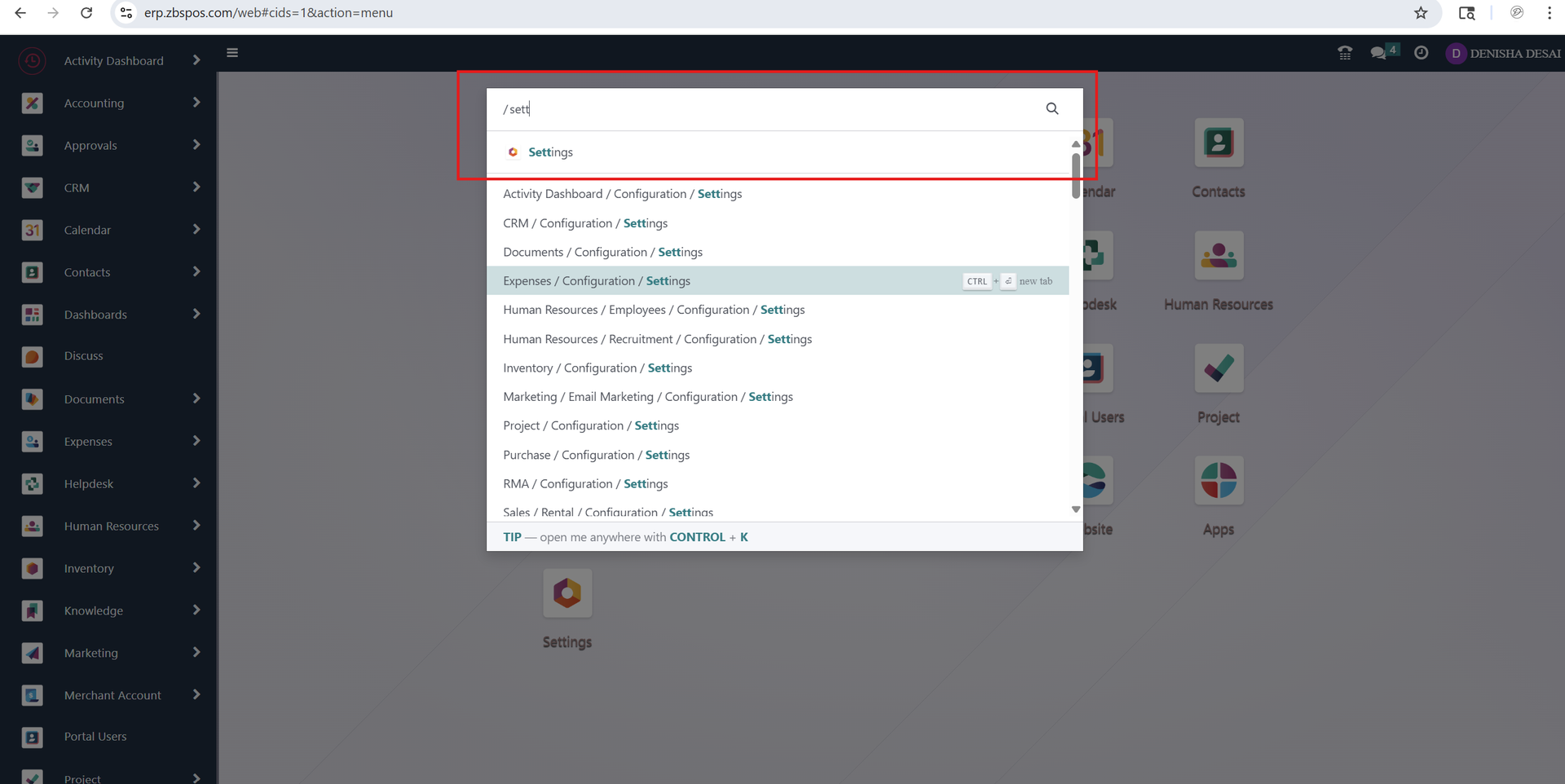
Step 2: Access the User Management Section
After logging in, you will land on the Google Admin dashboard.
In the search bar at the top, type “Users” and press Enter.
Click on the "Users" section to view the list of all active users in your organization.
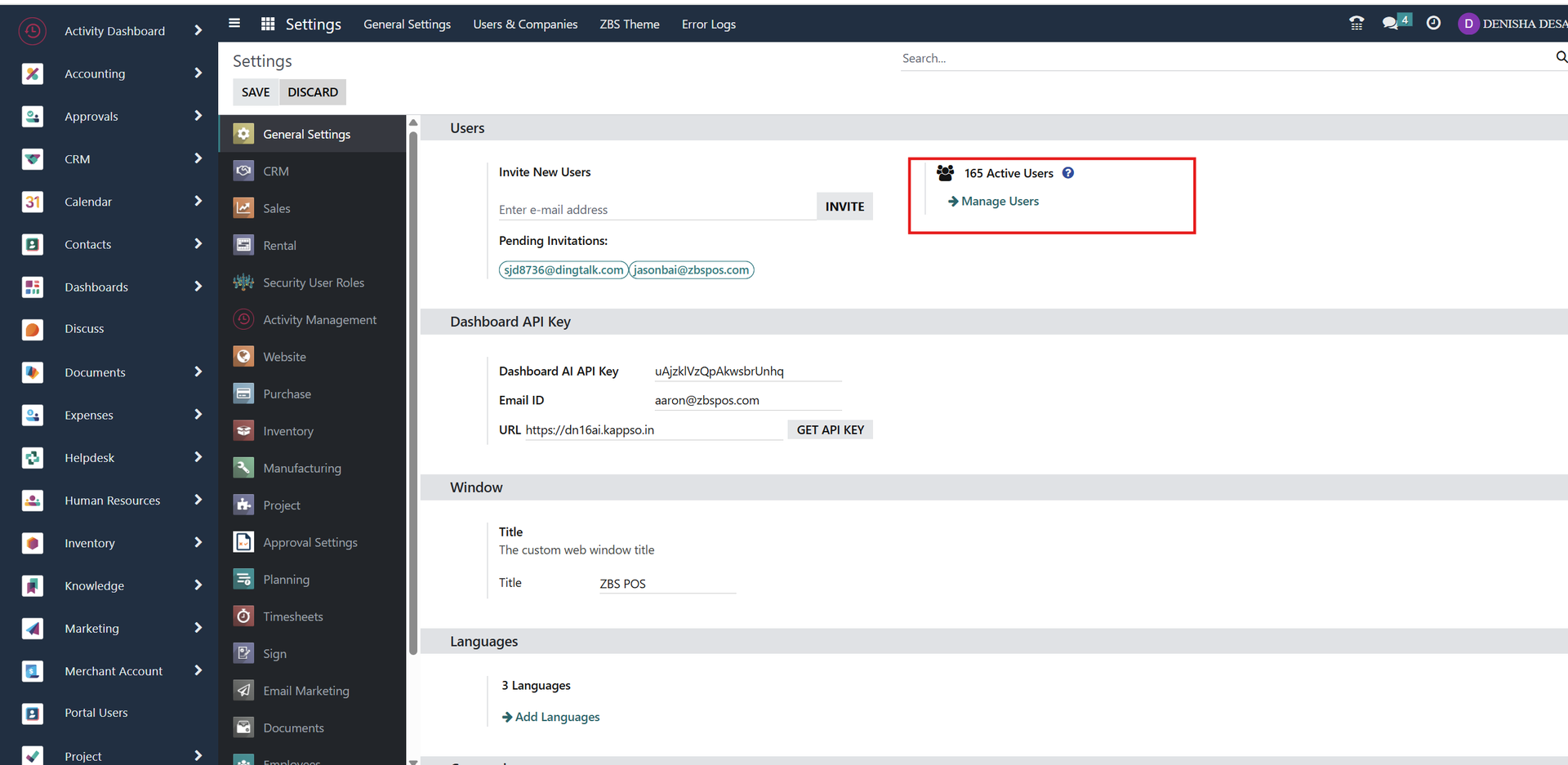
Step 3: Find the User
Browse the list or use the search bar to find the specific user whose password you want to reset.
Click on the user’s name to open their account details.
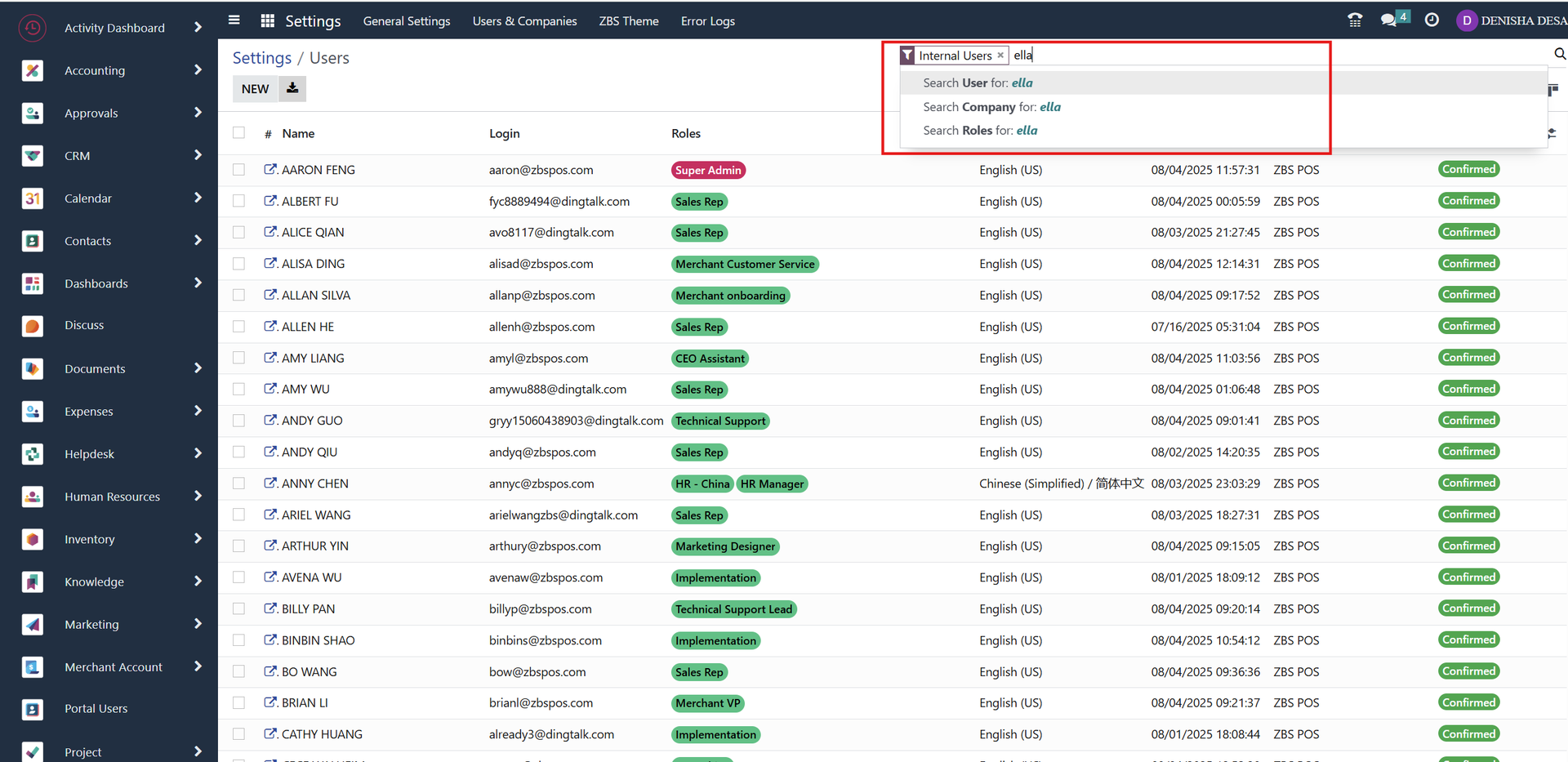
Step 4: Reset the Password
In the user’s profile page, click on the "Reset Password" option.
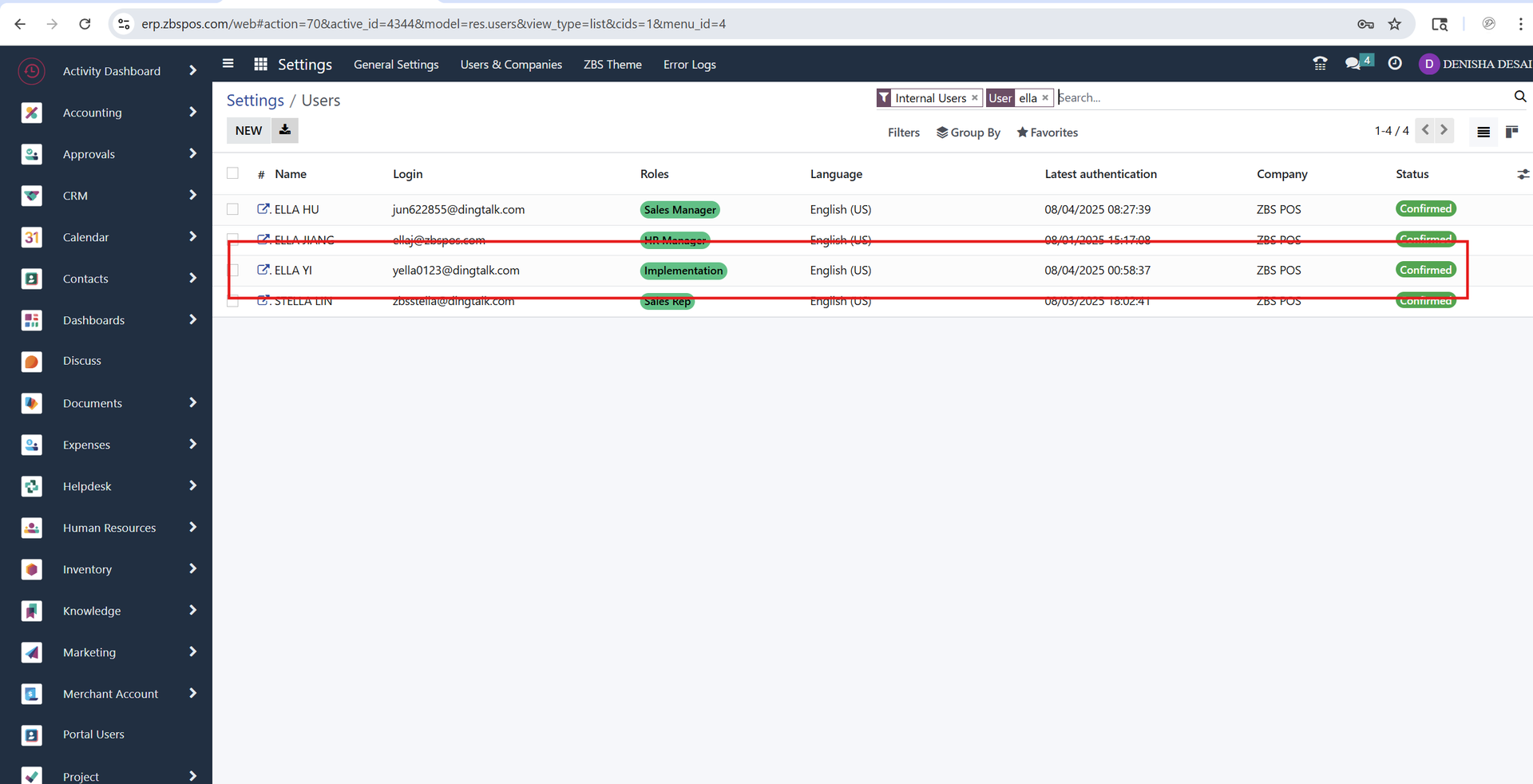
A new window will pop up. You can either:
Auto-generate a password,
(Optional) You can check the box to require the user to change the password at the next sign-in for security.
Step 5: Confirm
Click "Reset" to confirm.
Share the new password with the user securely (e.g., via a secure message or call).
Once the user logs in using the temporary password, ask them to change it immediately to something secure and memorable.