IT Test Document
Onboarding Overview
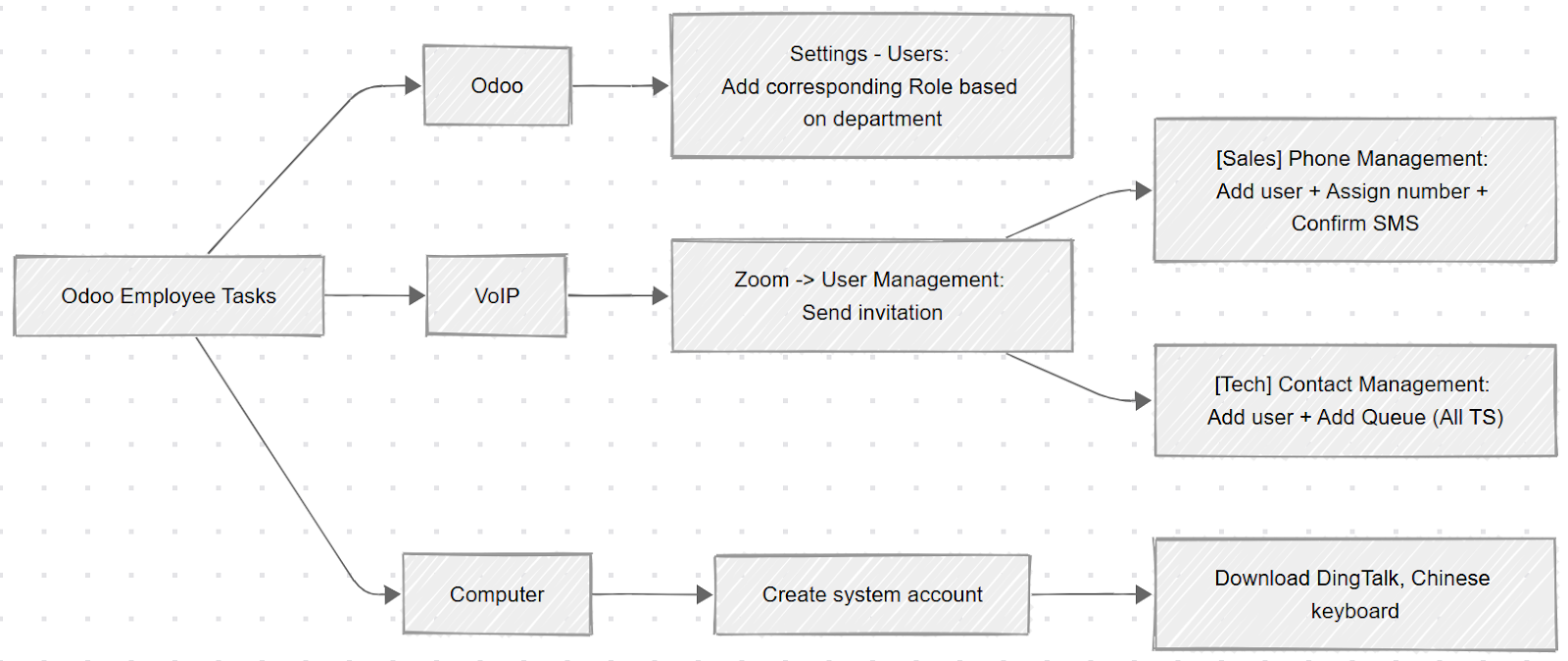
When you receive an email notification about a new employee onboarding, you need to start opening the software accounts for them
Odoo Onboarding
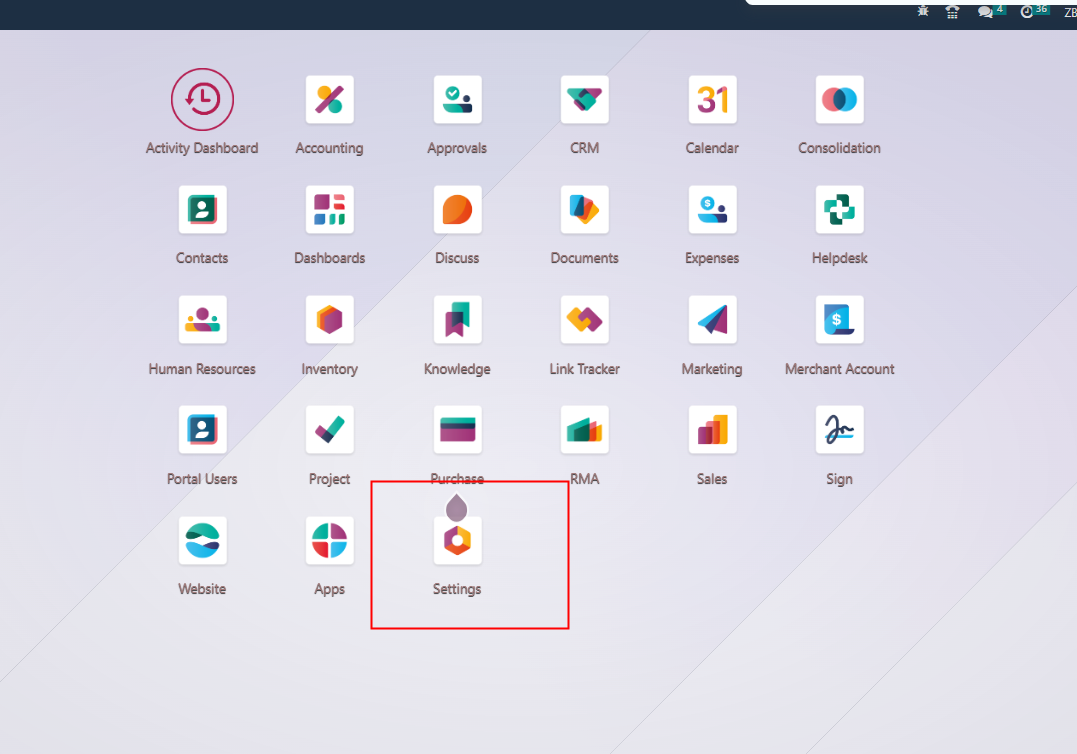
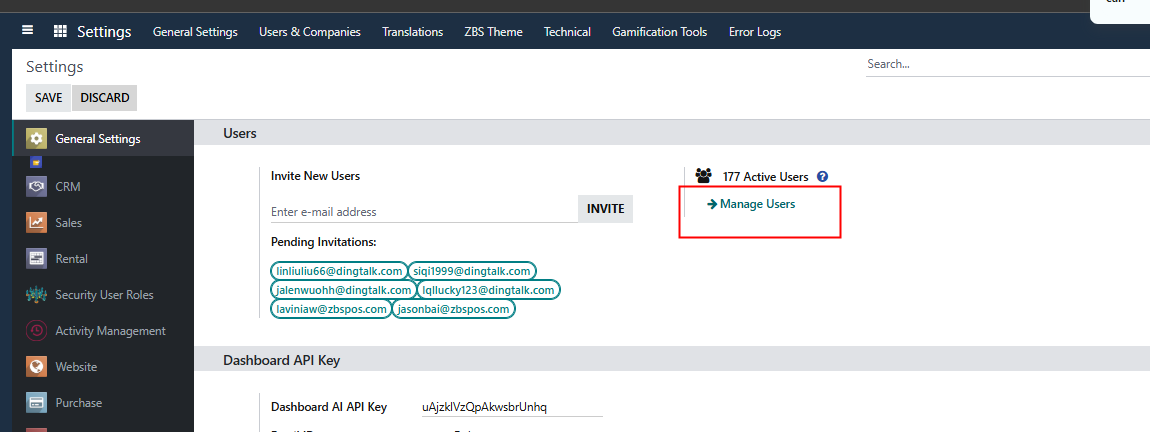
Settings - Manage Users - Search for the new employee
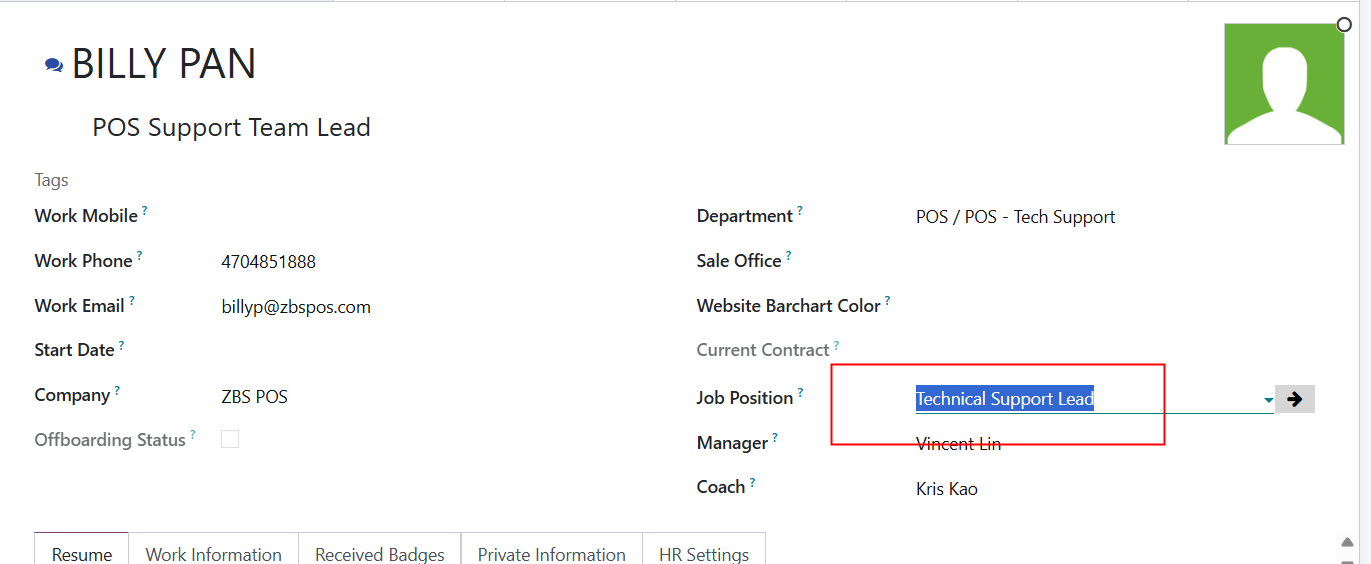
Pick user role based on job position title
The following page can be found in human resources - employee module. You can find the job position name on it
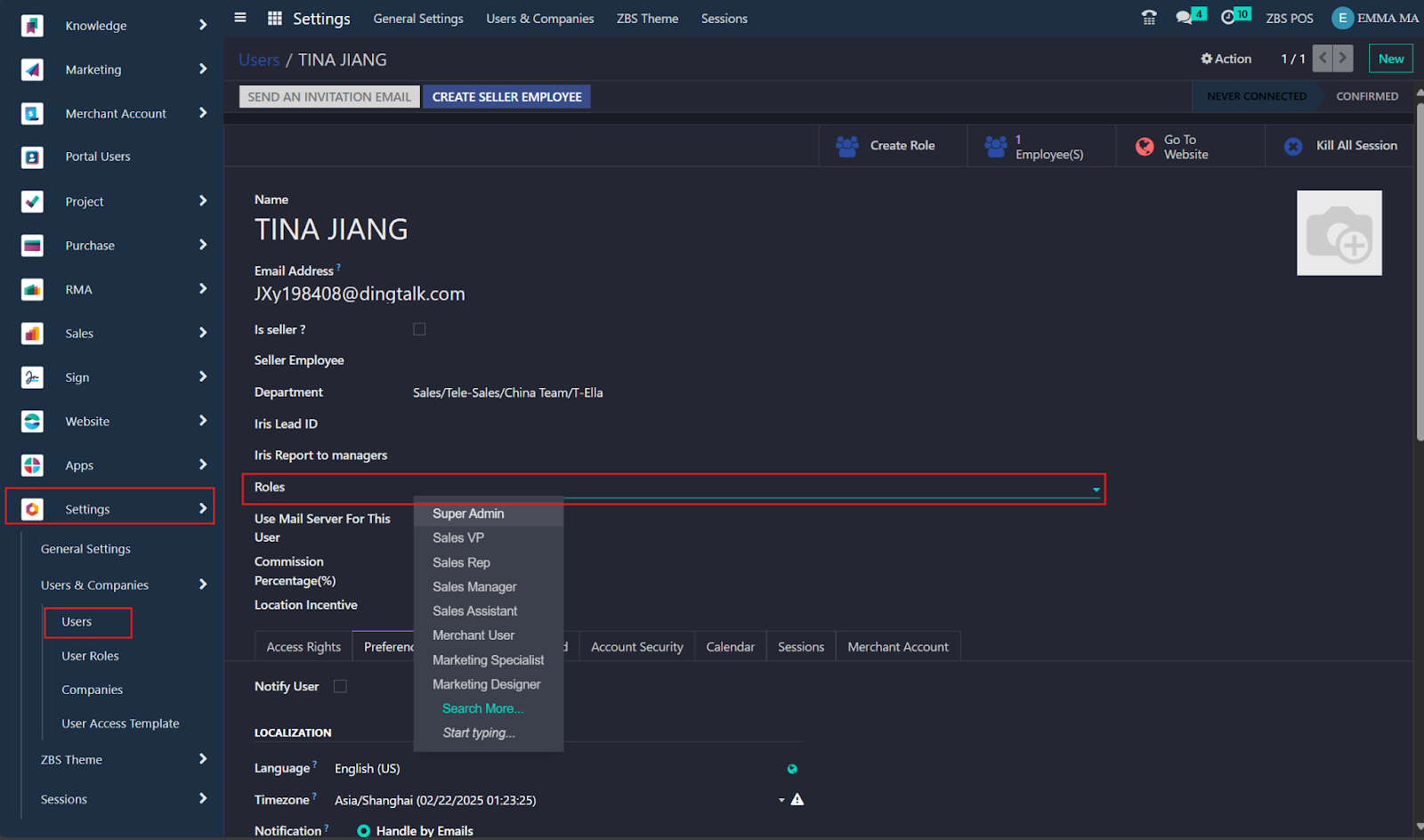
After you give them the user role, check your activity as done on employee page
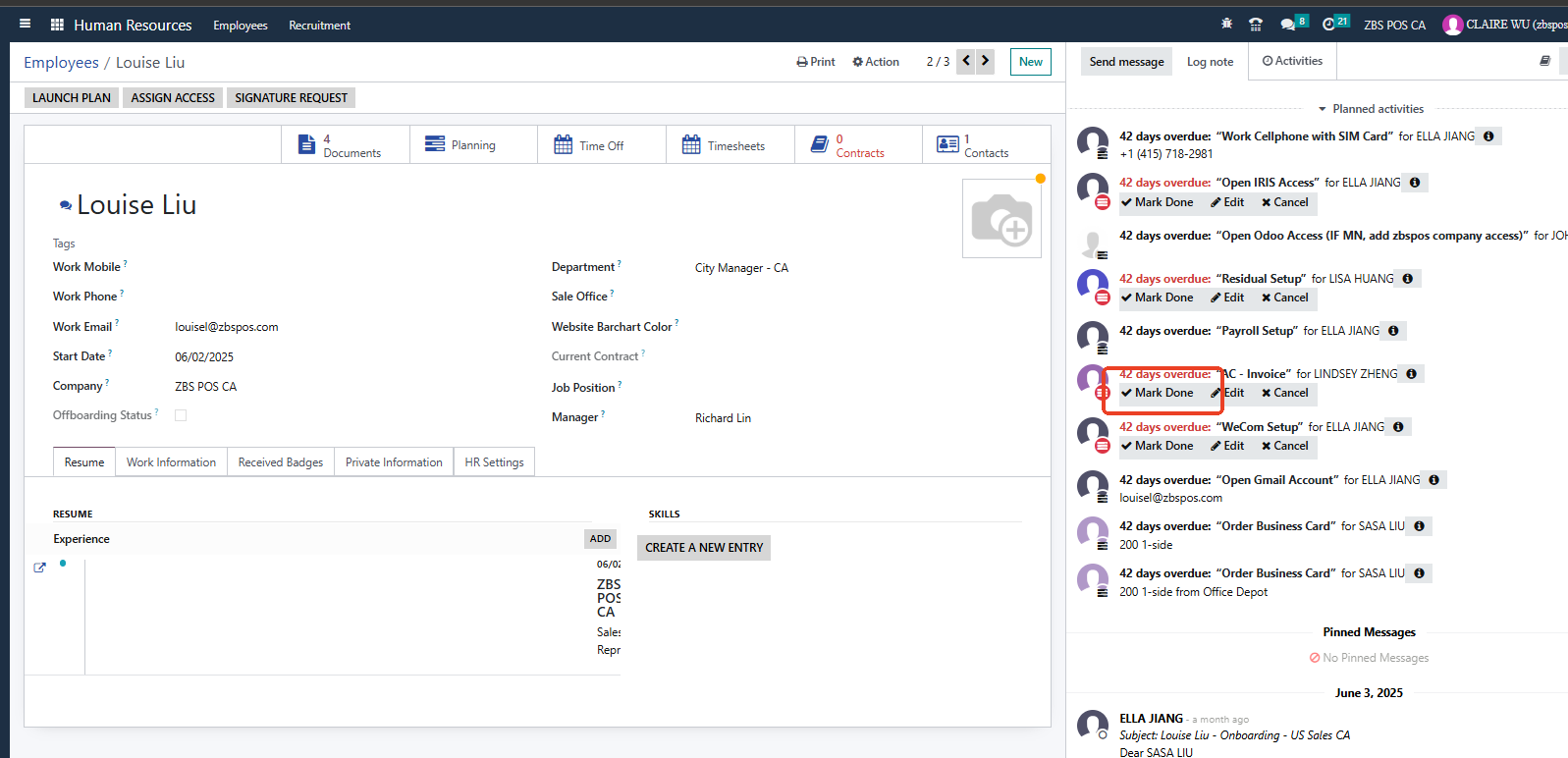
Note: For the R&D department no need to open Odoo Account.
Zoom:
Access Activation Process:
Step 1: Zoom invitation email is sent (Evening of Day 1, Beijing Time)
Step 2: Employee accepts the invitation (Morning of Day 2, Beijing Time)
Step 3: Wait for Zoom access to be activated (Evening of Day 2, Beijing Time)
2.1 Send invitation
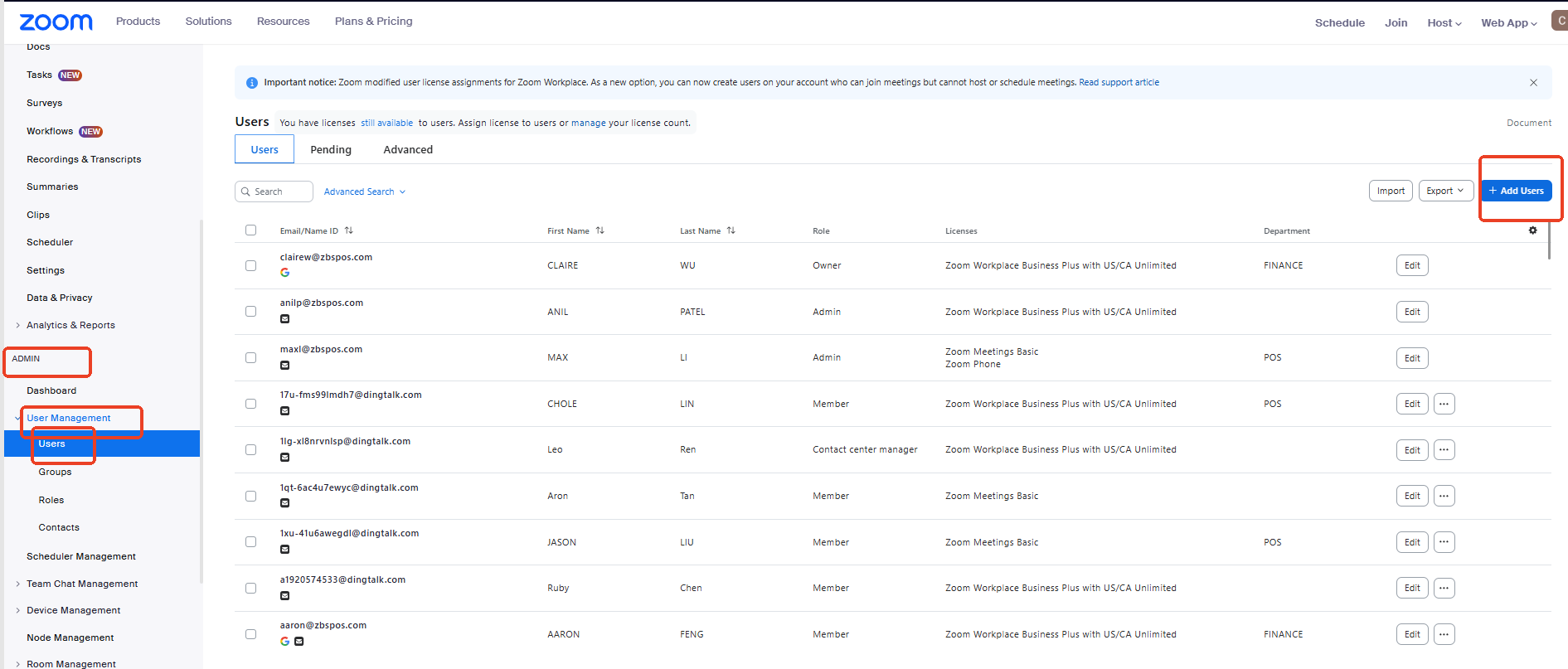
login to your zoom account, go to user management - user - add user
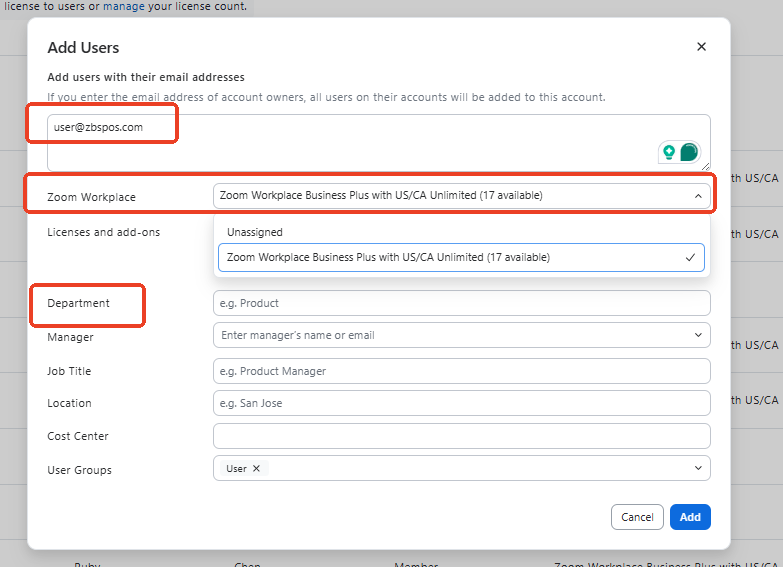
Put in user department - user email you see from Odoo employee page - select package
If user needs zoom phone - zoom workplace business plus with US/CA unlimited
If user needs contact center - unassigned
Department | Template |
Accounting | Zoom contact center - template Accounting |
Marketing | Don't open account |
Merchant Customer Service | Zoom contact center - template Accounting Merchant Customer Service |
Merchant Onboarding team | Zoom phone |
POS - Tech Support | Zoom contact center - template Tech support level 1 role agent with SMS |
POS - Implementation POS / Customer Retention | Zoom phone |
POS - Deployment | Zoom phone |
Customer success | Zoom phone |
All Sales in China | Zoom phone |
All Sales in US And For HR - R&D VP | Don't open account |
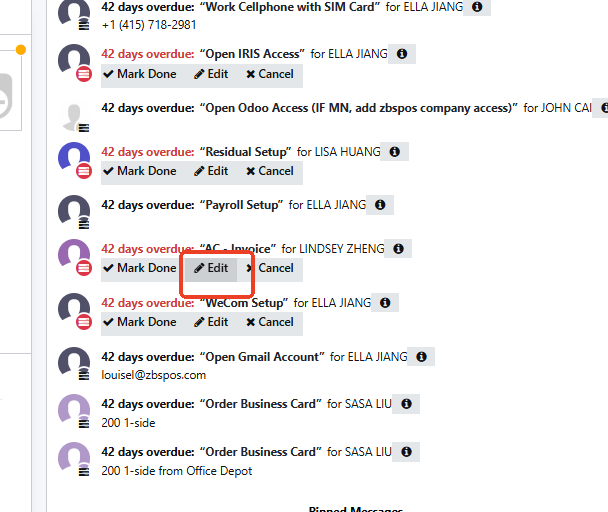
2.2. Record status updates in Odoo. Example:
3/13: Pending Accept
3/14: Pending Accept. Hint message has been sent via Ding Talk.
3/17: Pending Accept. Follow-up message has been sent.
3/18: Pending Accept. Follow-up message has been sent to Manager xxx.
Click on edit and ad your updates
2.3 Send invitation message via Ding Talk to the relevant account:
Hello, the Zoom invitation has been sent. Please check your email [xxxxx] and accept the invitation as soon as possible.
After accepting the invitation, Ding Talk will send a message to this account indicating “Accepted.”
Note: Accepting the invitation only confirms your Zoom account registration. It does not mean your access is immediately activated.
Please wait for the "Access Granted" message from this account (usually sent on the evening of the same day, Beijing Time) before confirming or raising any access-related questions.
2.4 Send access granted message via Ding Talk to the relevant account:
Hello, your Zoom access has been granted.
Please log in to the Zoom desktop app with your account [xxxxx] to check your permissions.
If you have any access issues, please contact me.
2.5 Add license after user accepts invitation
Phone User
License:
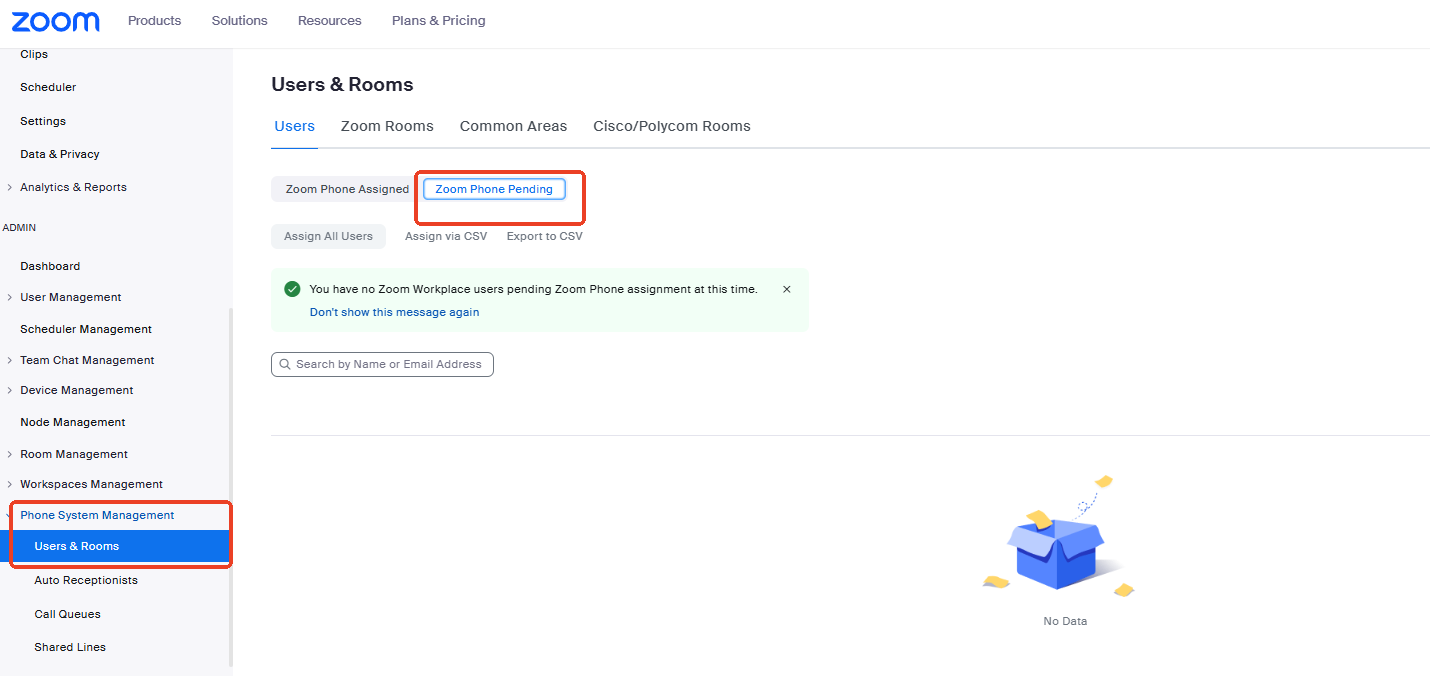
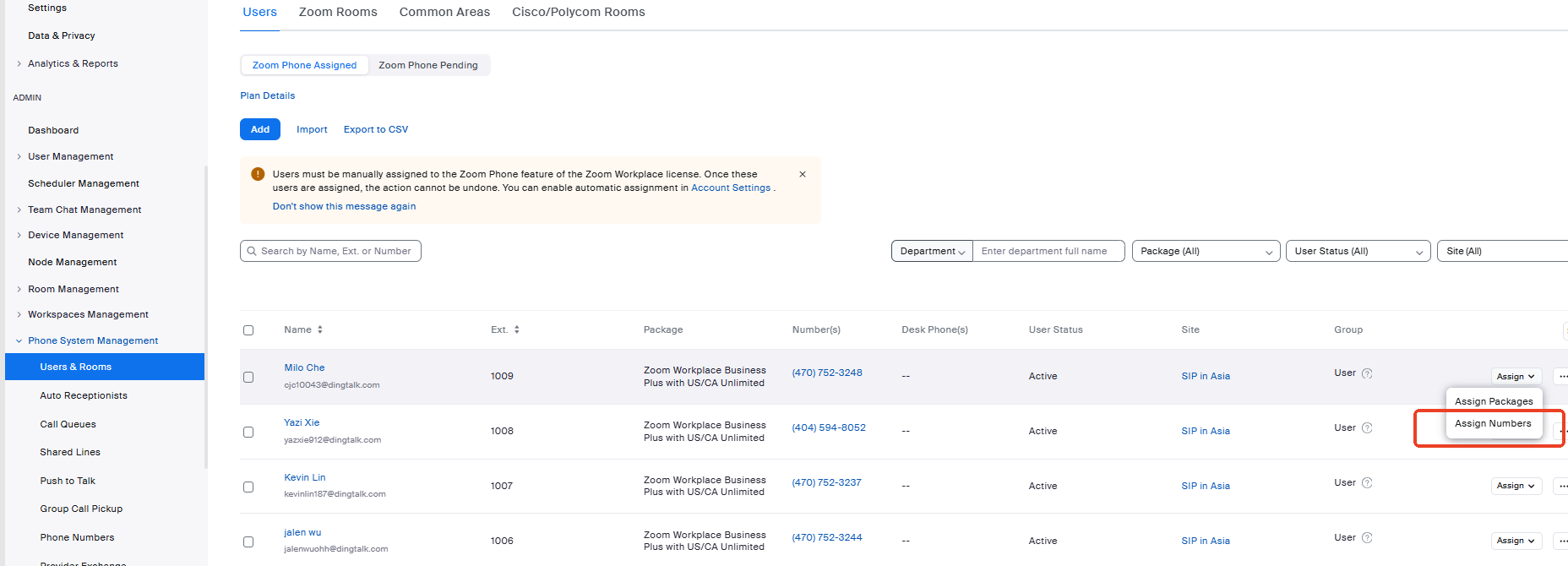
Sales - User management - zoom work place: Zoom Workplace Business Plus with US/CA Unlimited (15 available) → Phone, pending assign, assign package → Phone, assign number.
Phone Manager (If user is a sales manager)
License: same as phone user
Access: User management - Role - Phone - Add as manager
Contact Center User
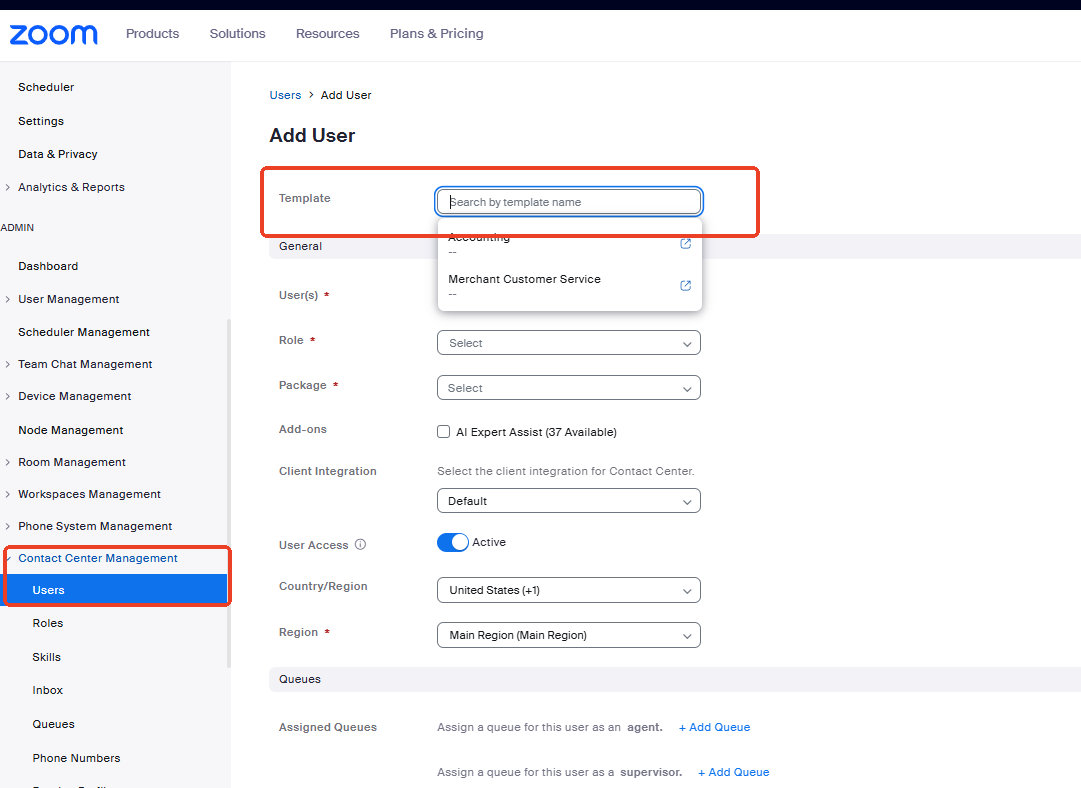
User management - zoom work place: unassigned → waiting for accept → contact center management → users + add template based on the position mapping table above
Offboarding
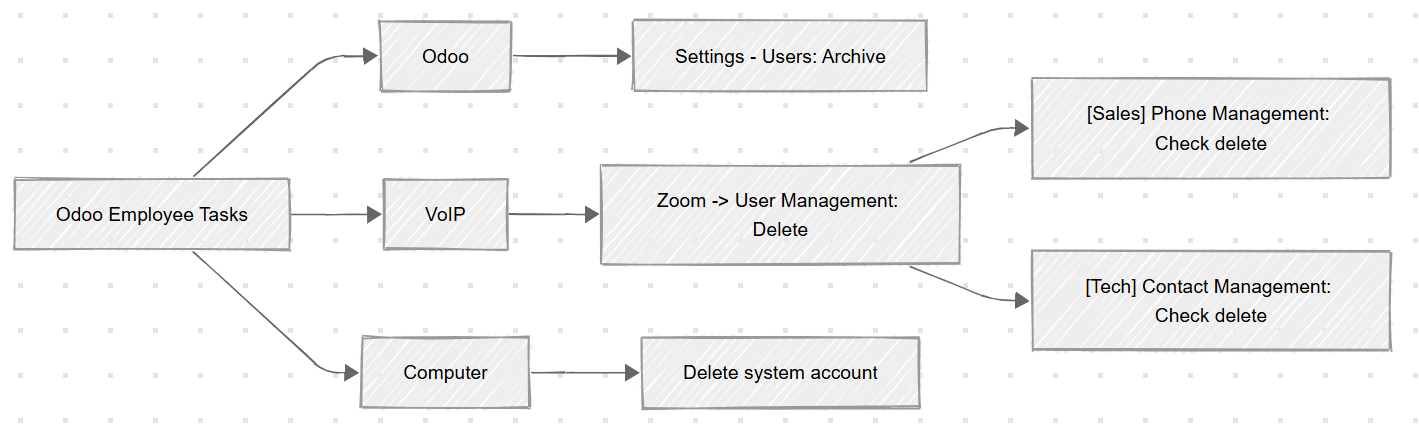
Archive Odoo User - Transfer to Manager (Ask HR or manager to whom to transfer).
Data Access / Transfer to Manager by Role (Odoo)
Role | Data Transferred to Manager |
Sales Representative | Leads, Tickets |
Marketing | Activities, Tasks, Leads, Tickets |
Support Teams (Bookkeeper, POS Specialist, POS Deployment, POS Implementation, Tech Support, Customer Retention, HR, Team Director) | Activities, Tasks,Tickets |
Delete Zoom User - No need to transfer.
Sales Code for Sales Rep (Setting-User- Card Connect)
Code | Location/Name |
LAUNCH-LM21 | Thanh Vo |
LAUNCH-MR21 | Minnesota Office |
LAUNCH-CR21 | California Office |
LAUNCH-NY21 | New York Office |
LAUNCH-FL05 | Florida OfficeSales Code For Card Connect |
LAUNCH-TXR25 | Texas Office |
LAUNCH-YL25 | Guo Chen (Yumei Li) |
LAUNCH-DNR05 | Denver Office |
LAUNCH-FZH05 | China Office |
LAUNCH-ATL21 | Atlanta Office |
LAUNCH-YN12 | Jing Li |